Why some logos on LinkedIn glow
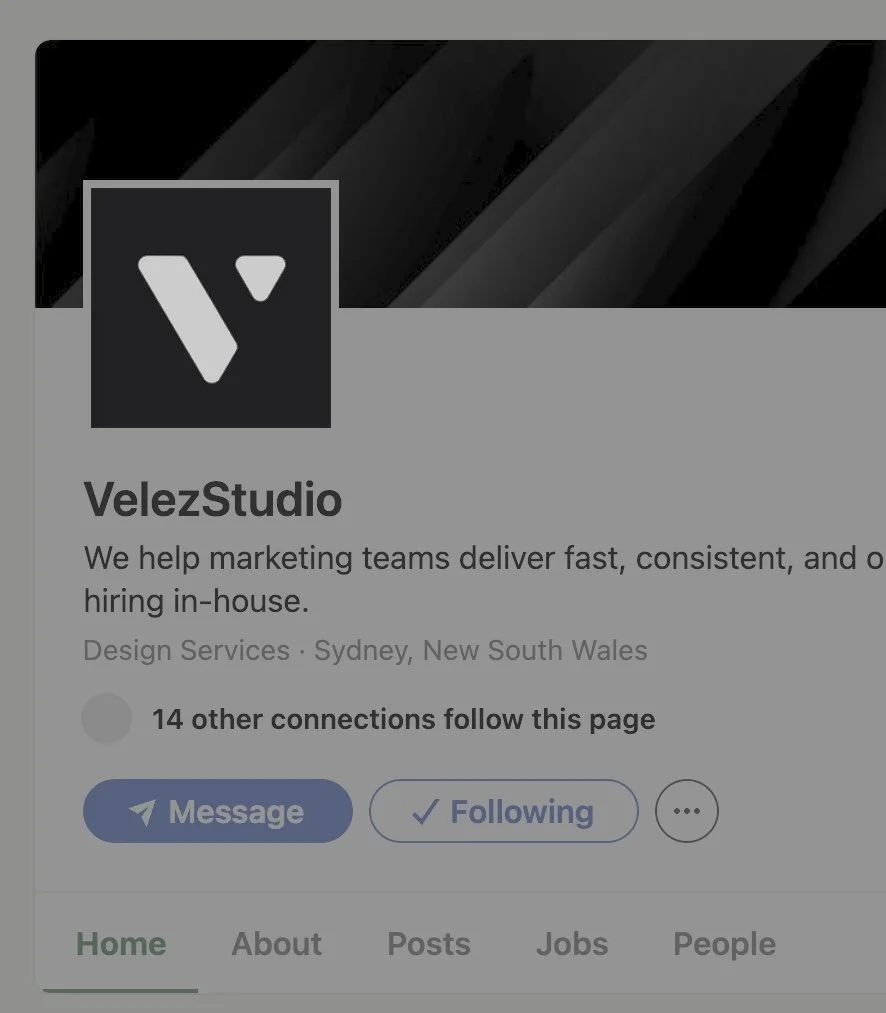
You've scrolled past one of these and didn't know why it caught you.
Certain logos on LinkedIn look lit from behind. Not bolder colours, not better marks. Actually lit, like there's a light source behind the screen. It turns out this isn't a design trick at all. It's a display trick.
The headroom nobody uses
Your phone can display light far brighter than plain white. It has to, or a sunset photo would look as flat as a lamp switched on in a hallway. That extra range is called HDR headroom, and almost no image on your feed ever touches it. Every logo, every graphic, every post sits at the same flat ceiling: standard white, nothing more.
A few people have quietly worked out how to push past that ceiling, and the result is a logo that looks like it's genuinely glowing, sitting apart from everything else in the feed.
How to do it, in about 10 minutes
Start with a square logo on a solid background. A light-coloured mark on a dark ground works best. The contrast is what sells the effect.
Add the Claude skill that applies this technique to your account.
Upload your logo and ask Claude to make the whites glow for LinkedIn.
Check it on your phone before posting. If there's no glow, something in your workflow stripped it out.
Upload the file exactly as it comes out. Resizing or re-saving it kills the effect. HDR data doesn't survive most standard image processing.
One caveat
The glow only shows up on screens capable of displaying HDR: iPhone 12 and newer, recent iPads, MacBook Pros from 2021 onward, and flagship Galaxy and Pixel phones. On everything else, it just looks like a normal logo. There's no downside to using it, but expect at least one person to comment that they can't see anything different.
The half second that matters
What made me stop scrolling wasn't a clever hook or a bold headline. It was half a second of "hang on, why does that look different?"
That half second is most of the game.
How to install?
Download the zip file (already correctly structured — hdr-glow folder at the root, not loose files).
On claude.ai, go to Customize → Skills (from the profile/settings menu).
Make sure Code execution and file creation is turned on — this lives in Settings → Capabilities. Without it, skills can't run.
Click "+" then "+ Create skill," and upload the zip directly.
Toggle the skill on.